Daily English School 데잉스
팀즈(구. Skype) 사용 가이드 (How to change display name in Teams)
Ms.D
2025. 4. 30. 09:35
사전 Teams 설치 안내
IOS - https://apps.apple.com/kr/app/microsoft-teams/id1113153706
Android - https://play.google.com/store/apps/details?id=com.microsoft.teams&hl=ko
프로필 설정안내
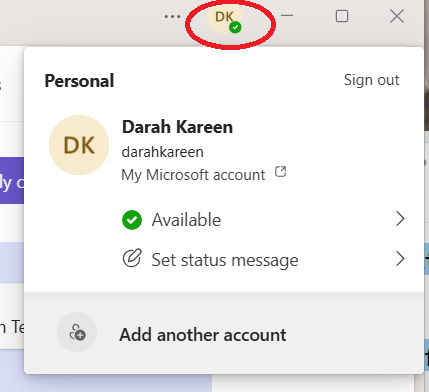
1. 아바타를 클릭하셔서 프로필로 이동하세요. 그런 다음 프로필에 접속하세요. (Navigate to your profile by clicking your avatar. Then, access your profile.)
- Microsoft Teams 앱에서 오른쪽 상단 모서리에 있는 프로필 사진을 클릭하세요.
- (In the Microsoft Teams app, click on your profile picture in the upper right corner.)
- 프로필 카드가 열립니다.
- (This will open your profile card.)
2. 이름 편집 (Edit Your Name)
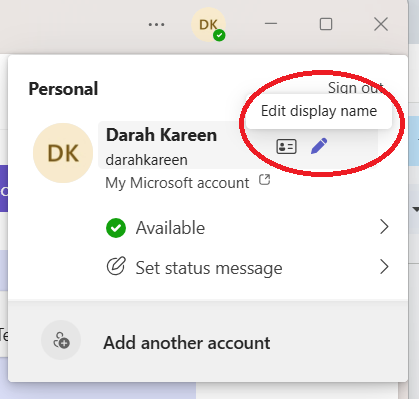
- 프로필 카드에서 현재 표시 이름을 클릭합니다.
- (Click on your current display name within the profile card.)
- "이름 편집" 옵션이 나타나면 클릭하세요.
- (A “Edit name” option will appear. Click on it.)
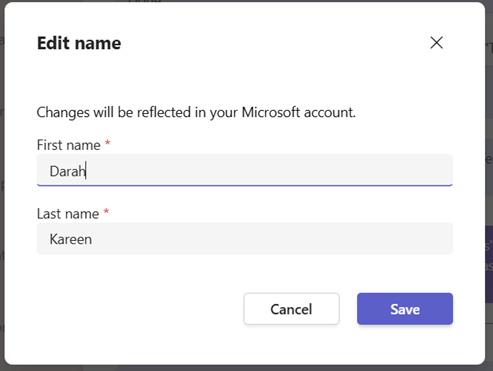
- 새 창에서 성과 이름을 편집할 수 있습니다.(영어 이름으로 변경)
- (You'll be able to edit your first and last name in a new window.)
3. 변경 사항 저장(Save Changes)
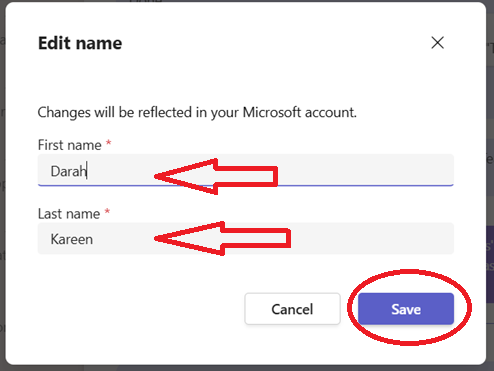
- 원하는 내용을 변경한 후 "저장" 버튼을 클릭하세요.
- (After making your desired changes, click the "Save" button.)
- 새 이름은 Teams 프로필과 회의에 표시됩니다.
- (The new name will be displayed in your Teams profile and in meetings.)